Technologies 06.11.2026
 SpeedyGo: One plugin to make your WordPress website faster
 Corvexa: AI that turn more website visitors into qualified leads.


 Energy
 Oil and gas
 Transportation
 E-commerce
 Healthcare
 Real Estate
 Fintech
 Manufacturing
 Education
 Agriculture
 Travel
 Cyber Security
 Crypto
 Law and Order
 Entertainment
 Hospitality
 Logistics
 Non-profit
 Digital Industry
 Venture Capital

A Quick Guide on the Right Software Development Approach for Enterprises in 2023


 06/11/2026


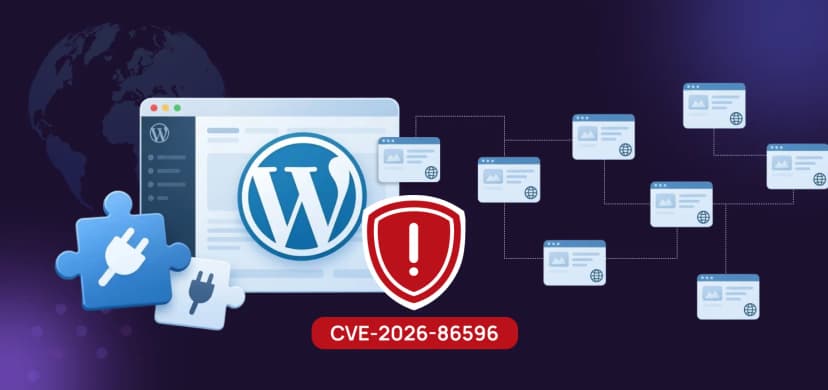
In just six days, security researchers published hundreds of new problems in popular WordPress plugins. Most already have a fix, but a few do not. This guide explains the list in plain words and shows you exactly how to check your site.
| Short version
Open your plugin list today and update everything. The most serious problems, which let a stranger run code or upload files on your site, were fixed in new versions. A few plugins have no fix yet, so remove them if you use them. |
Every day, researchers find security mistakes in WordPress plugins. A plugin is an add-on, like a contact form, a shop tool or an SEO helper. When a mistake is found, it gets a public ID number called a CVE, and the plugin’s makers are told to release a fixed version.
The website Plugin Pulse, run by WP Mayor, collects these reports in one place. It shows what the problem is, which versions have it, and which version fixes it. The list we looked at shows 200 recent entries, dated from October 29 to November 3, 2026. The records come from Wordfence Intelligence.
Each entry looks scary at first, but it follows one simple pattern.

These are marked Critical, the highest level. Most of them need no login at all, which means a stranger on the internet could try them. All have a fixed version, so the cure is simply to update.
| Plugin | What can go wrong | Update to |
| s2Member | A stranger can run their own code on your server (remote code execution) | 261001 |
| Project Manager | A stranger can run their own code on your server | 4.1.2 |
| PDF Invoice for WooCommerce + Drag and Drop Template Builder | A trick with a checkout field can lead to code running on your server | 7.2.0 |
| SimpleForm | A stranger can upload any file, including harmful ones | 3.11.0 |
| Ultra Addons for Contact Form 7 | A stranger can make your site delete files | 3.5.55 |
| Acadlix LMS | A stranger can delete files from your server | 1.2.0 |
| Uncanny Toolkit for LearnDash | A stranger can skip the login | 3.8.3 |
| Gravity Forms | A stranger can send a harmful object through a form field | 3.1.3 |
| Popup Builder | A stranger can trash popup posts | 4.4.6 |
| WP Booking System | A stranger can delete calendar notes | 2.1.0.6 |
This is the part that needs your attention. In the list, these plugins were marked “No patch available”, so you cannot fix them by updating:
| Plugin | Affected versions | Level | Problem in short |
| LeadSnap | 1.25 and older | High | A stranger can send harmful data (PHP object injection) |
| Slim Jetpack | 2.7.0.1 and older | High | A stranger can plant a script through the contact form “Website” field |
| Remove Google Fonts | 1.7 and older | High | A stranger can plant a script through the comment box |
| Food Store | 1.5.5 and older | High | A stranger can plant a script through a cookie |
| Mobile builder | 1.4.2 and older | High | A logged-in subscriber can raise their own power |
| Solid Testimonials | 3.3.10 and older | High | A logged-in contributor can send harmful data |
| WP BASE Booking | 6.5.2 and older | Medium | A logged-in subscriber can raise their own power |
| What to do if you use one of these
Look for a safer alternative, deactivate and delete the plugin, and check back later in case the makers release a fix. A plugin with no fix keeps its hole open for as long as you keep it. |
You will see the same few problem types again and again. Here they are in simple language.
You may also see words like “Subscriber+” or “Contributor+”. This tells you who needs an account to use the trick. “Subscriber+” means any logged-in member. “Unauthenticated” means no account at all, and that is the more dangerous kind.
These are widely used plugins. Each one already has a fixed version, but your site is exposed until you update:

Updates are usually safe, but a backup means you can undo any problem. With WP-CLI (a free tool for managing WordPress from the command line), you can save your database like this:
wp db export backup-before-updates.sql
Also copy your wp-content folder, or use your host’s backup button.
This shows every plugin, its version, and the new version available:
wp plugin list –fields=name,status,version,update_version
To see only plugins that have an update waiting:
wp plugin list –update=available
No command line? Open your WordPress dashboard and go to Dashboard → Updates. Compare your version with the “Affects <=” number in the list above.
Update one plugin, for example the first one on the critical list. Replace plugin-slug with the plugin’s folder name from the list in Step 2:
wp plugin update plugin-slug
Or update everything at once, then check that your site still works:
wp plugin update –all
It is also wise to update WordPress itself:
wp core update
wp plugin deactivate plugin-slug
wp plugin delete plugin-slug
wp plugin list –status=inactive
The last line lists switched-off plugins. Switched-off plugins can still be attacked, so delete the ones you do not need.
Most of the plugins on this list were fixed within days. If your site updates itself, you are protected without lifting a finger. For plugins you trust, you can switch this on with:
wp plugin auto-updates enable –all
Check your shop or forms after big updates, since a rare update can break a feature.
If one of your plugins was on the critical list and you updated late, take a quick look around:
wp user list –role=administrator
wp core verify-checksums
find media -type f -name “*.php”
You should only see admin users you know. The checksum command should report no changed WordPress files, and the last command should find no PHP files inside uploads. If something looks wrong, change your passwords, restore a clean backup, and ask for help.
Seeing 200 problems in six days can feel like too much, but it is normal for a busy ecosystem. It does not mean WordPress is unsafe. It means plugins need regular care. A few simple habits keep you ahead of nearly all of these attacks:


The reported critical vulnerabilities affect plugins including s2Member, Project Manager, SimpleForm, Gravity Forms, Popup Builder, Ultra Addons for Contact Form 7, and others. Updated versions addressing the reported issues are listed in the article.
According to the referenced report, plugins including LeadSnap, Slim Jetpack, Remove Google Fonts, Food Store, Mobile builder, Solid Testimonials, and WP BASE Booking had vulnerabilities without available patches at the time of reporting. Website owners should check for updated advisories and remove affected plugins if no fix is available.
Open your WordPress dashboard and navigate to Plugins → Installed Plugins. Review installed plugin versions and compare them with trusted vulnerability databases such as Wordfence Intelligence or WPScan. You can also use WP-CLI to list installed plugins and available updates.
Yes. Attackers can exploit known vulnerabilities in outdated WordPress plugins to steal information, upload malicious files, gain unauthorized access, or compromise website functionality. The impact depends on the specific vulnerability and the conditions required to exploit it.
Back up your website, update vulnerable plugins to patched versions, remove unnecessary or unsupported plugins, and review your website for suspicious activity. Enable automatic updates where appropriate and regularly monitor security advisories.
Inactive plugins can still pose a security risk because their files remain on the server. Although deactivation prevents many plugin functions from running, certain vulnerabilities may still be exploitable. Delete plugins that are no longer needed.
Check for security updates regularly and install critical patches as soon as practical after verifying compatibility and maintaining a backup. Automatic updates can help reduce exposure, especially for trusted and actively maintained plugins.
Catch wind of the latest technologies, strategies, and information that are set to boost your business operation. We update frequently!