Development, Technologies 02.10.2026
02.10.2026 SpeedyGo: One plugin to make your WordPress website faster
 Corvexa: AI that turn more website visitors into qualified leads.

 Energy
 Oil and gas
 Transportation
 E-commerce
 Healthcare
 Real Estate
 Fintech
 Manufacturing
 Education
 Agriculture
 Travel
 Cyber Security
 Crypto
 Law and Order
 Entertainment
 Hospitality
 Logistics
 Non-profit
 Digital Industry
 Venture Capital
A Quick Guide on the Right Software Development Approach for Enterprises in 2023


 07/05/2026


You might not realize it yet, but if your website is showing a malware warning to even a small percentage of visitors, you are already losing customers.
People are landing on your site, seeing a red “dangerous” warning, and leaving immediately. Just gone.
That means lost leads, lost revenue, and lost trust before they even see what you offer.
And the worst part? You might open your website and see absolutely nothing wrong. But behind the scenes, security systems may be flagging your site and silently blocking real users.
This guide explains what’s actually happening, why it happens even on clean websites, and how to fix it properly.

When people hear “malware warning on their website,” most of them immediately think one thing: someone hacked me. And sometimes that is true. But most of the time, that is not what is happening at all.

A malware warning is a message displayed by security tools such as Norton, Google Safe Browsing, McAfee, Quttera, and VirusTotal when their scanners detect suspicious activity in your website’s code.
Those tools are not looking at your website the way a customer would. They are scanning through the code running behind the scenes, and they are asking one question: Does anything here behave like malware?
If the answer is yes, even partially, they flag your site. And from that moment, every customer who has that security software installed will see a warning screen instead of your homepage.
This problem is far more widespread than most people realise. Here are the actual numbers.
“It takes 20 years to build a reputation and five minutes to ruin it. If you think about that, you will do things differently.”
~ Warren Buffett
A malware warning on your website is one of those five-minute moments. Your customers see a red screen telling them your site is dangerous. It does not matter that it is a false flag or that your site is technically fine. The damage to trust happens instantly. And the only way to stop it is to understand what caused it and fix it as soon as possible.

Most business owners have never seen what their customers are actually seeing.
Depending on what security software your visitor has installed, they might be hitting one of these screens the moment they try to open your site.

Here are the actual warnings, platform by platform, so you can see exactly what is being shown to your customers.
1. Norton Safe Web
Your customer sees this the moment Norton flags your website. The message is direct:

“Dangerous Web Page Blocked”
“You attempted to access: [your URL]”
“This web page is a known dangerous web page. It is highly recommended that you do NOT visit this page.”
There is a small “Continue to the site” link at the bottom. Almost nobody clicks it. When people see the word “BLOCKED” on a red screen, they are gone.
2. Google Chrome
Chrome has multiple warning screens depending on what it detects. Your customers could be seeing any one of these.

“The site ahead contains harmful programs”
Attackers on [your website] might attempt to trick you into installing programs that harm your browsing experience (for example, by changing your homepage or showing extra ads on sites you visit).

“Deceptive site ahead”
“Attackers on [your website] may trick you into doing something dangerous like installing software or revealing your personal information (for example, passwords, phone numbers or credit cards).”
This one specifically targets login pages and checkout pages, exactly the kind of pages where your customers are entering passwords and payment details. When they see this, they stop. Every time.

“Download warning”
“This file contains malware or comes from a suspicious site.”
This appears when a visitor tries to download something from your website, a product PDF, a brochure, or a file. Chrome blocks the download and flags the source. Even if the file itself is completely harmless, the warning is enough to make your customer think twice about ever coming back.

“Danger: Malware Ahead!”
“Google Chrome has blocked access to this page on [your website].”
“Content from [suspicious domain], a known malware distributor, has been inserted into this web page. Visiting this page now is very likely to infect your device with malware.”
“Malware is malicious software that causes things like identity theft, financial loss, and permanent file deletion.”
Four different Chrome warnings. All triggered by different things in your code. All resulting in the same outcome: your customer leaves, and your website never got a chance.
3. McAfee WebAdvisor
McAfee shows two different levels of warning depending on how serious it considers the threat.
![Site Report - Here's why [your website] could be risky](https://bunny-wp-pullzone-lsnby8erzc.b-cdn.net/media/2026/05/19-How-to-Fix-a-Malware-Warning-1024x482.png)
“Site Report – Here’s why [your website] could be risky”
“We scanned this site and found that it’s not as secure as it should be. Please click with caution.”
Website status: Slightly risky
This is the lighter version. McAfee is not fully blocking the site, but it is telling your customer to be careful. For most people, that is enough to make them leave. Nobody wants to “click with caution” when they are about to enter their password or payment details.

“Warning: Trouble ahead”
“Whoa! Are you sure you want to go there?”
“[Your URL] may be risky to visit.”
“Why are you seeing this?” “When we visited this site, we found it exhibited one or more risky behaviours.”
4. VirusTotal
VirusTotal is not something your customers use directly. But it is the tool that feeds into everything else: Norton, McAfee, and other security vendors pull data from it.
It checks your URL or file against 49 to 95 different security vendors simultaneously and shows the result like this:

“43 security vendors flagged this file as malicious”
Each vendor flags it with its own label: Trojan, Malicious, Unsafe, HackTool, listed one by one across the screen.

| ⚠ A customer told you the site looks dangerous or blocked
They got a warning, a red screen, or their browser or antivirus software stopped them from opening your website. |
| ⚠ Someone sent you a screenshot of a security warning
It said something like “Dangerous Web Page Blocked,” “Threat Secured,” or “This site may harm your computer.” |
| ⚠ Your Google Ads got disapproved or suddenly paused
Google flags compromised or suspicious sites and pulls ads immediately. If your campaigns stopped for no obvious reason, this is worth checking. |
| ⚠ Your traffic or conversions dropped with no clear explanation
No algorithm update, no changes on your end, just a quiet, unexplained drop in numbers over a few days or weeks. |
| ⚠ The site opens fine on your computer, but not on someone else’s
You check it, and everything loads perfectly. They check it and get a red screen. Same URL, different result. This is the most classic sign. |
| ⚠ You ran VirusTotal, and even one vendor flagged your site
VirusTotal checks your URL against 95 security vendors. Even a single flag out of 95 can be enough for Norton to block your entire site for millions of users. |
| ⚠ Your login page or checkout is specifically the one being blocked Security tools pay the most attention to pages that handle passwords and payments. A flag on these pages is treated as high severity. |
| ⚠ Google Search Console is showing a Security Issues alert
If you have Search Console set up, check the Security Issues section. If Google has flagged something, it will appear there before you hear about it from a customer. |

Your site can look completely normal and work exactly the way it should, and still get flagged.
How? Because security scanners are not looking at how your site looks. They are looking at how your site behaves. And over time, websites accumulate things that start to look suspicious, not because anyone put them there maliciously, but because nobody went back to clean them up.

Here is what actually causes most of these flags:
| What It Is | Why Scanners Flag It | Risk Level |
| Reference to a blacklisted external domain | Your site is connecting to a server that security tools have already flagged as malicious or suspicious | High |
| Script causing an unconditional redirect | Forcing a redirect on page load without user action is a classic phishing script behaviour | High |
| Passwords or form data stored in the browser LocalStorage | Looks exactly like password harvesting, which is what phishing pages do, even if you added it as a “Remember Me” feature | High |
| Hardcoded API token or credential in theme files | Exposed credentials in live code are a strong indicator that a site may have been compromised | High |
| Old third-party scripts nobody removed | Tools you installed two years ago may have since been flagged, or the domain behind them may have been blacklisted | Medium |
| Legacy code in the footer or header, doing nothing | Unnecessary external connections add noise that makes scanners suspicious of the overall site behaviour | Medium |
| Messy redirects broken, self-referencing, or pointing to other domains | Redirect abuse is a common malware technique. Even an unintentional redirect mess raises suspicion | Low–Med |

Step 1: Run your site through multiple external scanners
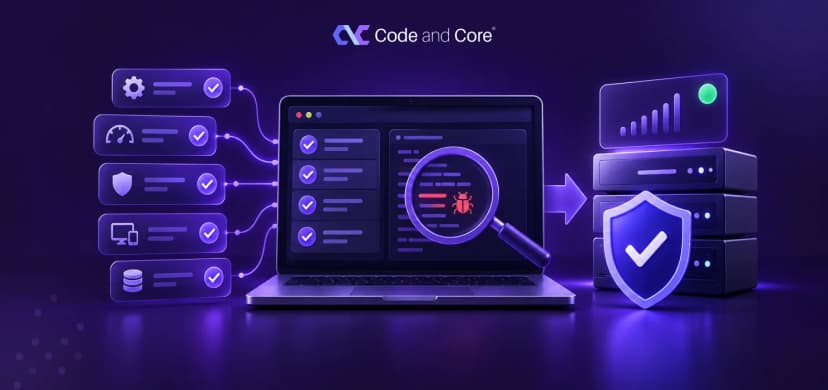
Do not rely on just one tool. Use VirusTotal, Quttera, Google Safe Browsing Transparency Report, Bitdefender Link Checker, and PCRisk. Each one checks for slightly different things. Run all of them and note which ones flag your site and why. Screenshot everything you will need for this when filing disputes later.
Step 2: Audit every script running on your site
If you are on BigCommerce, go into Script Manager and look at every single entry: when was it added, what does it do, is it still needed? If you are on WordPress, go through your active plugins and your theme files one by one. Look for anything that connects to an external domain you do not recognise. If you are not sure what something does, look it up. Do not leave anything unreviewed.
Step 3: Check your theme files manually, not just the plugin list
This step trips people up. Scripts hardcoded directly into theme files will not appear in any script manager or plugin dashboard. You have to look at the actual code. Check the footer file, the base layout file, any sidebar templates, and any popup templates. Look for JavaScript you do not recognise, references to external domains, and anything that looks like it was added temporarily and forgotten.
Step 4: Pay close attention to your login page, specifically
If Norton is flagging your site as phishing, the login page is almost always where the issue is being detected. Check whether any script on that page is storing passwords, email addresses, or form values in the browser LocalStorage. Check whether there are any scripts on that page that you cannot immediately explain. Check whether there are any redirects triggered from that page.
Step 5: Remove what needs to go properly, not just commented out
Once you have identified the problem scripts, remove them. Do not just comment them out with a note to review later; actually remove them. Test the site after each removal to confirm nothing legitimate has broken. Check the browser console for errors. If something breaks, you will know immediately which removal caused it.
Step 6: File dispute requests with every vendor that flagged you
Cleaning your site does not automatically remove the flag. You have to go to each security vendor individually, Norton Safe Web, Quttera, Google Search Console, VirusTotal, and request a rescan. Without this step, the flag stays up indefinitely.

| Quick Tip
When you submit dispute requests, keep them brief and factual. Tell the vendor what you found, what you removed, and when you did it. You do not need a long explanation. One or two sentences per item is enough. The cleaner and more specific your submission, the faster the review goes. Always submit to all vendors on the same day; do not wait for one to respond before filing with the others. |

Earlier this year, a large US-based e-commerce store came to us with this exact problem. Customers using Norton were hitting a full red warning screen on their login page, calling it a phishing risk. The website itself looked completely normal from the owner’s side. Only 1 out of 95 VirusTotal vendors had flagged it. But that one vendor fed directly into Norton, which is installed on millions of computers across the US.
We ran a full investigation on every script, every theme file, every redirect and found seven distinct issues that together created a pattern security systems could not ignore. None of it was the result of a hack. All of it was fixable.

A malware warning does not mean everything is ruined. It does not mean your website is infected in some irreversible way. It means something in your site’s code is causing security tools to flag you, and right now, that flag is actively blocking some of your customers from reaching you.
Run the scans, go through your scripts, clean what needs to go, and file the disputes. If you reach a point where you cannot identify the source, or you just want someone to handle it properly from start to finish, get in touch with Code and Core. We will go through your site exactly the way we went through Apollo Lighting’s.

You May Also Find These Helpful

Catch wind of the latest technologies, strategies, and information that are set to boost your business operation. We update frequently!