









How to Solve Google Ads Disapproved for a “Compromised Site” (Even When Your Site Looks Clean)
 20/01/2026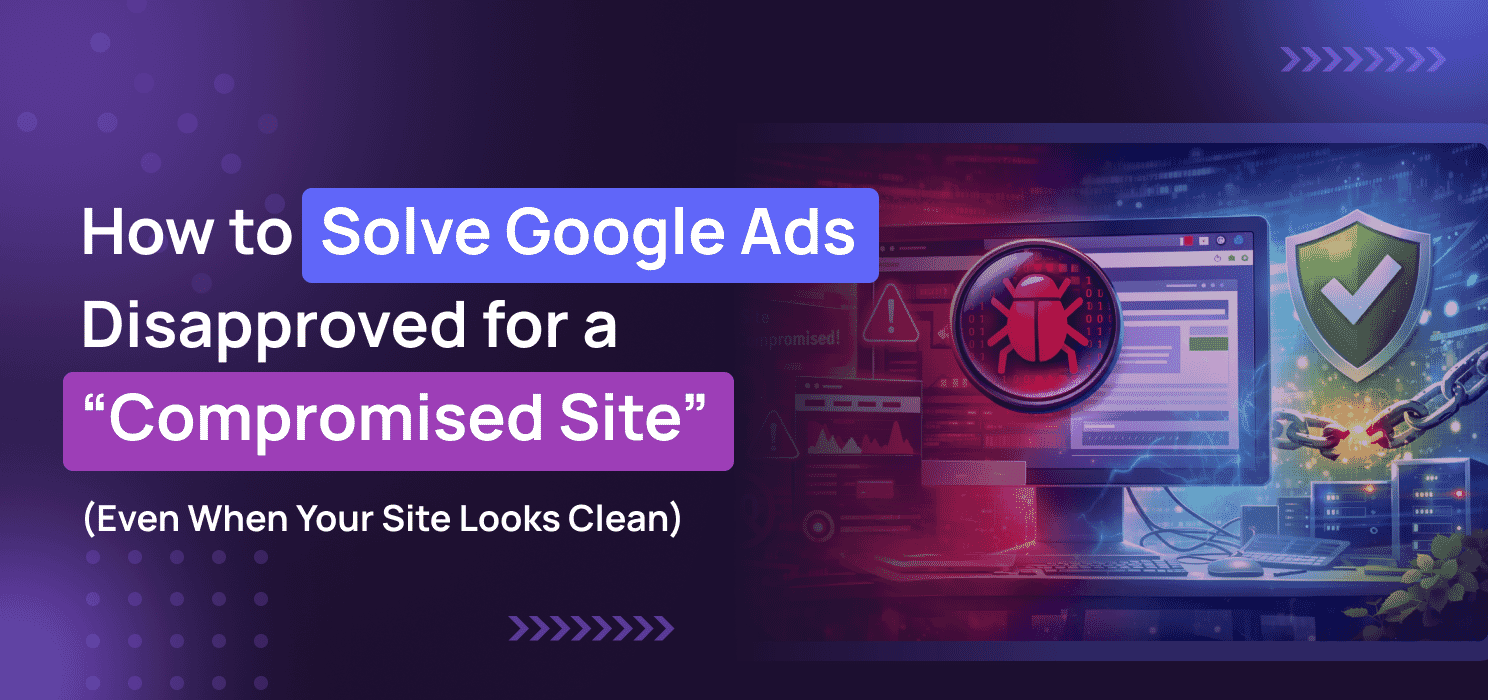


If you are reading this, chances are you’re dealing with one of the most frustrating Google Ads errors: a Google Ads compromised site warning.
“Status: Not eligible – Compromised site.”

This happens more often than you think. Thousands of businesses run into this every month, even with sites built on trusted platforms like WordPress, React, Next.js, or fully custom setups.
For many businesses, this means:
- Ads suddenly stopped
- Leads and sales dropped
- Campaigns paused
“Compromised site” doesn’t always mean your site is visibly hacked. Google Ads checks differently from a normal user or a basic scanner. It looks for hidden risks, suspicious behaviors, and unsafe connections that aren’t obvious at first glance.
This blog will guide you, explaining what Google actually means by “compromised,” why it can happen even when your site looks clean, and how to fix it step by step without panicking
What Google Really Means by a Google Ads Compromised Site
When Google says your site is “compromised,” it doesn’t mean your homepage looks broken, or that visitors see obvious hacks. What it really means is that Google’s scanners have picked up signals that could put users at risk, even if those signals are invisible to you.
Think of it like this: Google isn’t looking at your site the way a customer does. It’s digging into the code, the connections, and the behavior behind the scenes. If anything smells off, your ads get blocked.
Common Triggers That Cause a Google Ads Compromised Site Disapproved
- Outdated software – old plugins, themes, or CMS versions.
- Hidden injections – malicious scripts buried in files.
- Mixed content – secure (HTTPS) pages loading insecure (HTTP) resources.
- Redirect chains – links bouncing through domains you don’t control.
- Third‑party scripts – analytics, chat widgets, or payment tools flagged as unsafe.
According to Google’s own Safe Browsing Transparency Report, tens of thousands of websites are flagged every day for potential security issues, many of them false positives.
So when you see “Compromised Site,” don’t assume your site is ruined. It means Google found something it doesn’t trust. Your job is to track down what triggered the alarm, fix it, and prove to Google that your site is safe again.
How to Fix a Google Ads Compromised Site Disapproved (Step-by-Step)
Step 1: Update Everything

- Whether you’re on WordPress, Next.js, React, PHP, or a custom framework, update your CMS, plugins, and themes.
- In the last few months, multiple platforms have released patches for vulnerabilities. Running outdated versions is one of the fastest ways to get flagged.
Step 2: Confirm the Flag

- Check Google Ads Policy Manager for the exact Disapproved reason.
- Open Google Search Console → Security Issues to see if Google spotted malware/phishing.
- Document flagged URLs and screenshots — you’ll need them when requesting a review.
Step 3: Run Proper Scans

- Use external scanners like:
- VirusTotal
- SiteLock Free Scan
- Google Safe Browsing Transparency Report
- PCRisk Scanner
- Ask your hosting provider to run a server‑level malware scan.
- Compare your CMS core files against fresh versions to spot injected code.
Step 4: Manual Deep Checks

Sometimes scanners miss hidden injections. Do this manually:
- Open your site in a browser and search the page source for <iframe>.
- If you see iframes pointing to domains like korfo.org, nethcdn.com, or aliexpress, remove them immediately.
- Search for suspicious JavaScript files such as ok6.js, a11ybar.com, or stat.js.
- Check JSON files if you find code you don’t recognize, clean it out.
Step 5: Clean and Secure

- Delete suspicious files or injections.
- Install a firewall/security plugin.
- Rotate all passwords and enable 2FA for admin accounts.
- Fix SSL issues and remove mixed content (HTTPS pages loading insecure HTTP resources).
Step 6: Validate the Fix

- Rescan your site after cleaning.
- Test pages in incognito mode for redirects or console errors.
- Clear caches (server, CDN, plugin).
Step 7: Submit for Review

- In Google Ads, click “Made changes to comply with policy”.
- Request a review with a short explanation of what you fixed and proof (scan results, screenshots).
- Reviews usually take a few days.
💡 Pro Tip: Keep a clean staging site ready. If your live site gets flagged, you can quickly switch ads to the staging version while fixing production.
Bottom Line
If you’ve followed all the steps, updated your platform, cleaned out suspicious iframes and scripts, validated with scanners like VirusTotal, SiteLock Free Scan, Google Safe Browsing Transparency Report, or PCRisk Scanne,r your site should pass Google’s check,s and your ads will be back online without errors.
But if you’re still stuck, don’t waste time guessing. Contact Code and Core. We’ll dig deeper, fix what scanners miss, and get your campaigns running again.
If your website relies heavily on dynamic content, page builders, or custom fields, understanding how your content stack works is critical to avoiding future Google Ads issues.
You may also find these helpful:
– ACF WYSIWYG Character Limit: Prevent Layout Breaks and Content Overflow in WordPress
– Elementor vs ACF: Which one is better for you?
– 12 Must-Have Features of a Modern News Website
– Why a Website Should Be SEO Friendly?: 10 Essentials to Keep in Mind While Building It

Sources
Will my ads automatically restart once my site is fixed? 
Can using a CDN (like Cloudflare) affect Google’s decision?
Yes, sometimes. If the CDN serves cached unsafe content or misconfigured SSL, Google may flag the site. Always clear CDN caches after fixes.
Does changing my domain help if my site is flagged?
Not really. Google tracks both domains and hosting environments. Simply moving to a new domain without fixing the root issue won’t solve the disapproval.
Can compromised site flags happen because of ads themselves?
Indirectly, yes. If your ad points to a landing page with redirects, outdated scripts, or unsafe third‑party connections, Google will flag the destination URL.
What happens if I ignore the disapproval and don’t fix it?
Your ads remain paused indefinitely. Google may also lower trust in your account, making future reviews slower or stricter.
Is there a way to prevent false positives in the future?
Yes. Keep a staging site for testing, run monthly scans, and avoid adding unverified third‑party scripts. Document every update so you can prove compliance quickly.
Stay Updated (Blogs)
Catch wind of the latest technologies, strategies, and information that are set to boost your business operation. We update frequently!
Looking for reliable white label services?
At Code and Core, your data is safe with top-tier encryption. For extra peace of mind, we're happy to sign an NDA to ensure full confidentiality
Let's Talk
- Pay roll Basis
- Hire Tech Pool
- Maintenance of Existing Project
- Fixed Price Project
- Hourly Based
- Something Else





