










The 7 Best WordPress Speed Optimization Plugins for 2026
 18/08/2025


Ever opened a website and it just kept loading… loading… and you closed it out of frustration?
Yeah, same.
In today’s world, no one waits. If your website takes more than 3 seconds to load, most people will leave. They’ll just hit the back button and move on. That’s not just bad for your visitors, it’s bad for your business too.
Even Google agrees. They actually use your site speed to decide how high you show up in search results. And not just that, slow sites lose customers. 1 second delay can cost you sales, leads, or even a potential client.
Now here’s the thing. If your site is built on WordPress (which it probably is), you don’t need to learn coding or hire a developer to fix your slow site. There are plugins, literally small tools, that can do the job for you. These plugins help clean up your website, load pages faster, reduce the size of images, and make everything run smoother.
But… here’s the problem. There are hundreds of these plugins out there. Some are amazing. Others? Just hype.
That’s why we made this list to save your time, money, and sanity. We’ve picked the 7 best WordPress speed optimization plugins that actually work in 2026.
In this blog, you’ll find:
- What each plugin does
- What’s good about it and what’s not
- How much does it cost
- And tips on how to use them without breaking your site
Plus, we’re going to bust some common speed myths and share stats that actually matter.
Whether you run a blog, a small business, or an e-commerce store, your site speed can make or break the user experience. So if you’re tired of your website acting like it’s from 2010, keep reading.
7 Best WordPress Speed Optimization Plugins
1. SpeedyGo
SpeedyGo is a simple and powerful free WordPress plugin designed to make your website load faster. It improves performance across pages, images, and assets all without requiring technical knowledge or complicated setup. Instead of using multiple performance plugins with confusing settings, SpeedyGo gives you everything you need in one clean, lightweight free solution. It works in the background to optimize caching, images, and code so your website feels faster and smoother for every visitor.
Many WordPress sites slow down because they rely on too many heavy plugins, unoptimized images, and expensive speed tools that are hard to manage. SpeedyGo was created to solve this problem by focusing only on what actually improves speed, while staying lightweight and completely free to use.

What You Can Do with SpeedyGo
- Speed up page load times across your entire website
- Improve performance on desktop and mobile devices
- Optimize images automatically for faster loading
- Enable caching and compression with one click
- Improve Core Web Vitals and SEO performance
Key Features:
- One-Click Speed Optimization: Enable caching, compression, and code optimization instantly.
- Smart Caching System: Automatically manages cache, preloading, and mobile optimization.
- Image Optimization & WebP: Convert images to WebP for faster load times without losing quality.
- Fully Automatic Lazy Load: Loads images and media only when needed to improve first load speed.
- Fast & Lightweight: Built with clean, optimized code to keep your site light and responsive.
- Theme & Plugin Compatible: Works smoothly with most WordPress themes, page builders, and plugins.
Tip: We recommend using the free SpeedyGo plugin for a simple, lightweight way to boost your website speed and performance without extra setup.
2. WP Rocket
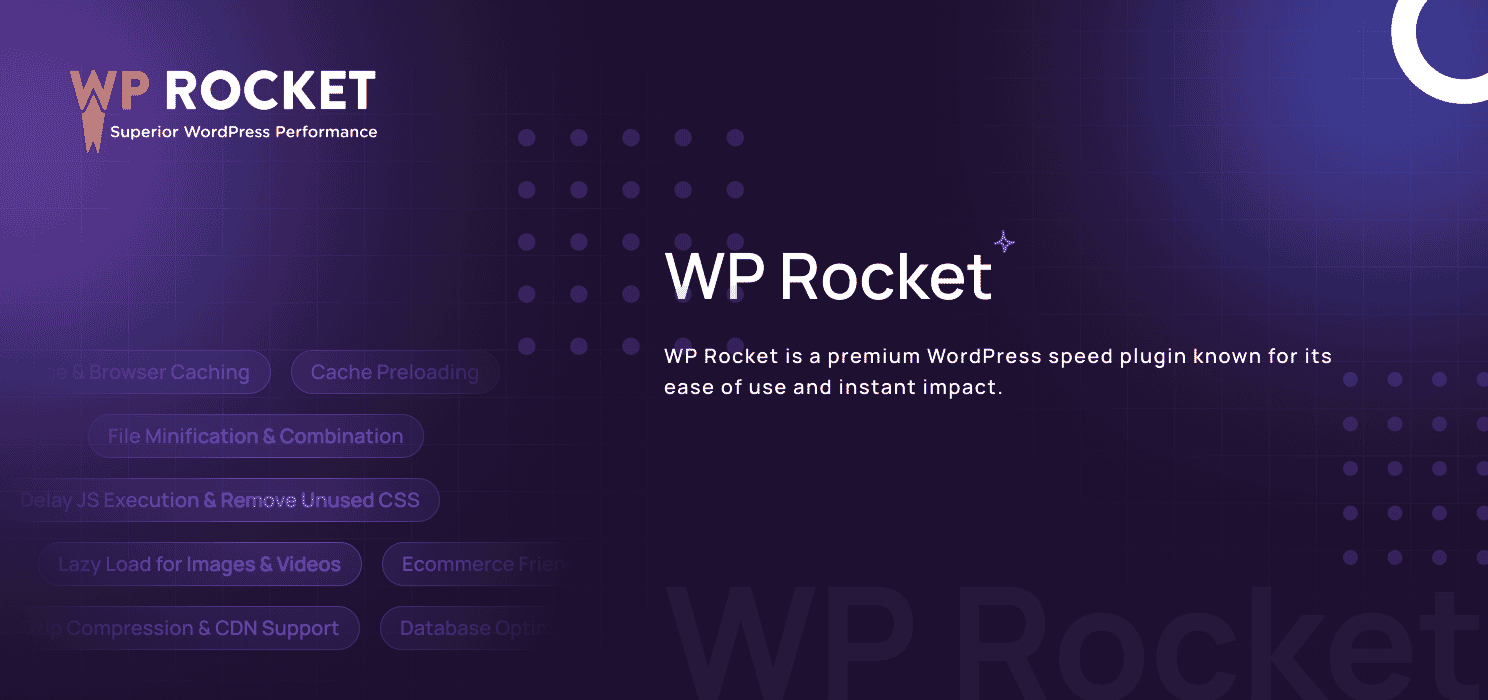
WP Rocket is a premium WordPress speed plugin known for its ease of use and instant impact. As soon as you activate it, it starts optimizing your website behind the scenes – no technical setup needed.
Whether you’re running a blog, WooCommerce store, or a business site, WP Rocket handles caching, file optimization, and lazy loading automatically. It’s designed to make your Core Web Vitals score happier and your visitors stick around longer.
Key Features:
- Page & Browser Caching: Delivers cached versions of your pages instantly and stores static files in the visitor’s browser for faster repeat visits.
- Cache Preloading: Automatically builds the cache in the background so your pages are ready before a visitor even clicks.
- File Minification & Combination: Reduces file sizes by removing unnecessary characters and combines multiple CSS, JavaScript, and HTML files to speed up page loads.
- Delay JS Execution & Remove Unused CSS: Delays loading of JavaScript until needed and removes unused CSS for a cleaner, faster load.
- Lazy Load for Images & Videos: Images, iframes, and videos only load when they’re visible on the screen, reducing initial load time.
- Gzip Compression & CDN Support: Compresses site data and integrates with popular CDN services to speed up content delivery across the globe.
- Database Optimization: Cleans up post revisions, spam comments, and other clutter to keep your database lean and fast.
- Heartbeat API Control: Manages WordPress heartbeat activity to reduce server load and save resources.
- Ecommerce Friendly: Automatically excludes cart, checkout, and account pages from caching to avoid conflicts.
- Beginner-Friendly Interface: Designed with a clean UI and optimized default settings so even non-tech users can get results fast.

3. Perfmatters
Perfmatters is built for those who want to go beyond caching and take control of the small things that slow down WordPress. It allows you to disable unnecessary scripts, reduce page weight, and optimize loading behavior, all with a simple interface.
Whether you’re running a blog or a business site, Perfmatters works quietly in the background to deliver noticeable speed improvements.
It’s the perfect companion plugin to WP Rocket or any caching solution, giving you extra tools for fine-tuned performance gains without complex configuration.

Key Features:
- Script Manager: Disable unnecessary CSS/JS files on specific pages or posts to reduce HTTP requests and speed up page load.
- Disable Unused WordPress Features: Turn off features like emojis, embeds, XML-RPC, REST API, and more cutting down on background bloat.
- DNS Prefetch & Preconnect: Load external resources faster by preloading fonts and connecting early to third-party domains.
- Lazy Load Images & Videos: Only load media when it’s needed (as the user scrolls), improving initial load times and reducing bandwidth usage.
- Local Google Analytics Hosting: Serve analytics scripts from your own server to avoid external requests and improve privacy and performance.
- Database Optimization: Clean up post revisions, spam comments, transients, and more to keep your database lean and fast.
- Heartbeat API Control: Reduce or disable WordPress Heartbeat to lower server load and prevent unnecessary background activity.
- CDN URL Rewriting: Automatically rewrite URLs to serve assets through your preferred CDN.
- Custom Code Injection: Easily insert code snippets into your site’s header, footer, or body without editing theme files.
4. NitroPack
NitroPack takes care of everything, caching, code optimization, image compression, lazy loading, CDN delivery with almost zero setup. You install it, connect your account, and choose how aggressive you want it to be.
Then it runs on its own cloud server,s so your site speeds up without using your hosting resources. Perfect if you want fast results without headaches.

Key Feature:
- Advanced Caching: Includes smart page, browser, and object caching with automatic warm-up and cache invalidation.
- Built-in Global CDN: Serves your files from Cloudflare-powered servers worldwide for ultra-fast delivery.
- Image Optimization & WebP Conversion: Compresses and resizes images, including animated ones, and converts them to WebP on the fly.
- Minification & Critical CSS: Minifies HTML, CSS, and JavaScript, and generates critical CSS to speed up above-the-fold rendering.
- Deferred JavaScript Loading: Delays or defers scripts until after user interaction for smoother, faster loads.
- Adaptive Image Sizing: Automatically serves image sizes based on device screen dimensions to avoid unnecessary weight.
- Font Optimization: Subsets and preloads only the fonts you need to reduce render time.
- Lazy Load Media: Delays images, videos, and iframes until they’re visible to the user.
- Server‑Side Optimization: All heavy lifting happens on NitroPack servers so it doesn’t eat into your hosting CPU or memory.
- Fast Setup & Modes: Choose preset optimization levels (like “Strong” or “Ultra”), or switch to manual mode when you’re ready to tweak.
5. WP Fastest Cache
WP Fastest Cache is a beginner-friendly caching plugin used by over a million WordPress sites. It focuses on what matters most: page caching, minification, and CDN integration all without overwhelming you with complicated options. Just install, check a few boxes, and your site gets faster.

Key Features:
- Page Caching: Generates static HTML files and serves them to visitors for lightning-fast page loads.
- Minification of CSS & HTML: Removes unnecessary characters from code to reduce file size without affecting functionality.
- Cache Preload: Automatically creates cached versions of all site content to serve instantly on first visit.
- Cache Expiry Settings: Set custom expiration times for posts, pages, or specific URL patterns.
- CDN Integration: Compatible with content delivery networks to serve assets faster from global servers.
- Gzip Compression: Reduces the size of your files sent to browsers, speeding up loading time.
- Browser Caching: Stores static resources like images and CSS locally in the visitor’s browser for faster repeat visits.
- Exclude Specific Pages: Choose which pages or posts shouldn’t be cached for full control.
- Mobile & Logged-in User Options: Option to serve a separate cache for mobile users or bypass cache for logged-in users.
- Premium Upgrade Available: Get additional features like image optimization, lazy load, and database cleanup with the paid version.
6. WP Super Cache
WP Super Cache is a no-fuss caching plugin built by the WordPress.com team, trusted by millions of sites. It converts your dynamic WordPress pages into static HTML files, which get served to users almost instantly, cutting out the server load. It’s simple to set up but also offers advanced modes for power users.

Key Features:
- Static HTML File Caching: Converts site pages into static content to speed up delivery and reduce resource usage.
- Multiple Caching Modes: Choose between simple, WP‑cache, or expert modes depending on your server and needs.
- CDN Support: Works well with external CDNs to serve static assets efficiently from global locations.
- Cache Preload: Preloads all your site pages into cache automatically so visitors get fast load times on first hit.
- gzip Compression: Compresses output files before sending to browsers for quicker downloads.
- Cache Expiration & Maintenance: Automatically expires cache and rebuilds it regularly to ensure content stays updated.
- Support for Mobile & Logged-In Users: Separate caching options for mobile visitors and bypass caching for logged-in users to keep dynamic areas working correctly.
- Simple Interface: Easy to set up for beginners, but also with options for tech-savvy users under expert mode.
- Completely Free: No premium tiers or paid add-ons, all speed benefits without the cost.
7. Cache Enabler
Cache Enabler is for users who want a clean, no-frills caching plugin that just works. It’s super easy to install and configure, and it delivers simple page caching and basic optimization without clutter or unnecessary settings. Perfect if you want something fast, dependable, and easy.

Key Features:
- Static Page Caching: Generates lightweight HTML pages and serves them instantly to speed up your site.
- HTML & JS Minification: Strips out unnecessary code from HTML and JavaScript files to reduce file size and improve load times.
- One-Click Cache Clearing: Clear the cache with a single click, perfect for quick updates or troubleshooting.
- Cache Expiry Control: Set how long cache should be stored before it gets refreshed automatically.
- Automatic Cache Invalidation: Clears the cache when you publish new posts or make updates, so your content always stays fresh.
- Integration with CDN Enabler: Works seamlessly with CDN Enabler for faster delivery of static assets via a CDN.
- Lightweight & Simplicity-Focused: Tiny footprint and easy setup means no drag on your WordPress admin.
| 💡 Quick Tips Before You Install a Speed Plugin
1. Take a Backup Save a full copy of your website before you try any plugin, just to be safe. 2. Don’t Use Two Caching Plugins One is enough. Using more than one can cause problems. 3. Test Your Speed Check your site speed before and after using tools like PageSpeed Insights or GTmetrix. |
How to Test Your Website Speed (Step-by-Step)
Step 1 – Pick Your Testing Tool
Choose one (or more) of these free tools:
- Google PageSpeed Insights → pagespeed.web.dev
- GTmetrix → gtmetrix.com
- Pingdom Tools → tools.pingdom.com
Step 2 – Test From the Right Location
Pick a server location closest to your main audience.
Example: If your audience is in India, choose an India-based server.
Step 3 – Run Multiple Tests
The first test might be slower because there’s no cached version yet. Run the test 2–3 times and take the average.
Step 4 – Check the Key Metrics
Pay attention to:
- Load Time – Overall time for your page to fully load
- LCP (Largest Contentful Paint) – Should be under 2.5 seconds
- CLS (Cumulative Layout Shift) – Should be below 0.1
- TTFB (Time to First Byte) – Should be under 200ms
Step 5 – Identify Bottlenecks
Most speed testing tools will tell you what’s slowing you down: large images, unused CSS, render-blocking scripts, etc. Make a note of them.
Step 6 – Apply Your Optimization Plugin & Retest
Install and configure your chosen plugin. Then re-run the test and compare the before/after results.
Step 7 – Keep Monitoring
Website speed can drop over time as you add new content, plugins, or updates. Test monthly or after major changes.
| 💡 Pro Tip: Always test both desktop and mobile versions; mobile users often have slower connections, so their experience matters most. |
Plugin Conflict Warnings
Speed optimization plugins can work wonders… but mix the wrong ones together, and your site might turn into a white screen of panic. To save yourself the stress (and the desperate calls to your hosting provider), here are the most common conflict scenarios to watch out for:
- Two Caching Plugins = Trouble
Running two caching plugins at the same time can cause:
- Broken layouts
- Pages not updating after edits
- Random errors like “Too many redirects”
✅ Fix: Pick one caching plugin and stick to it. If you want extra features (like script control), use a plugin that doesn’t overlap in caching (e.g., WP Rocket + Perfmatters is fine).
- Minification Overload
Multiple plugins trying to minify CSS/JS at once can:
- Break styles (site looks “unstyled”)
- Make sliders, menus, or animations stop working
✅ Fix: Only enable minification in one plugin. If something breaks, disable it and test again.
- Lazy Loading Everything
Lazy loading images is great, lazy loading logos, sliders, or above-the-fold images is not.
- Logo flickers or disappears
- Hero image takes ages to show up
✅ Fix: Exclude important images (like logos and hero banners) from lazy loading.
- CDN Misconfiguration
If your CDN is set up incorrectly, you might see:
- Missing images
- CSS/JS files not loading
- Mixed content errors (HTTP vs HTTPS)
✅ Fix: Double-check your CDN URL settings and purge both your CDN and site cache after changes.
- WooCommerce Checkout Issues
Caching checkout, cart, or account pages can:
- Cause wrong totals to display
- Prevent users from completing purchases
✅ Fix: Make sure your speed plugin excludes these pages from caching. Most good plugins do this automatically (WP Rocket, NitroPack).
| 💡 Pro Tip: Always test your site after enabling any new optimization feature, especially on mobile. And before making changes, take a backup so you can roll back if something goes sideways. |
Speed Myths Your Website Wishes You’d Stop Believing
🚫 “Speed doesn’t matter if my content is good.”
That’s like saying “The food’s delicious, so people won’t mind waiting 45 minutes for it.” Spoiler: they will.
🚫 “Free hosting is fine for my small site.”
Sure… and a tricycle is fine for the freeway.
🚫 “I only need to optimize once.”
Nope. The internet changes, plugins update, images creep in… speed tuning is like house cleaning – ignore it for too long and you’ll regret opening the door.
🚫 “Mobile visitors have fast internet now.”
Tell that to someone in the basement with one bar and a stubborn hamster powering their Wi-Fi.
🚫 “If my site loads fast on my computer, it’s fine.”
That’s because your browser already has everything cached. Everyone else is still seeing the spinning wheel of doom.
Conclusion
Website speed isn’t just a tech thing, it’s a business thing.
Whether you’re running a blog, a small business, or a growing eCommerce store, a slow site will cost you visitors, rankings, and revenue. The good news? You don’t need to become a developer or hire one.
Pick one solid speed plugin from this list that fits your needs and take action today. Even a few simple tweaks can make your site feel brand new.
Faster site = happier users = better results.
Start optimizing now, thank yourself later.
Can I use more than one WordPress speed optimization plugins at the same time? 
Will these plugins break my website design or layout?
If used correctly, no. But always back up your site before making changes. Test one feature at a time, especially when enabling minification, lazy loading, or deferring JavaScript.
Do free WordPress speed optimization plugins work as well as paid ones?
Some free plugins are excellent for basic speed boosts. But premium tools like WP Rocket or NitroPack offer more automation, better support, and deeper optimization especially useful for busy or non-technical users.
What’s the difference between caching and compression?
Caching stores a ready-made version of your page, so it loads faster. Compression reduces the size of your site’s files (like HTML, CSS, JS, images) so they load faster. Both work together to improve speed.
Which WordPress speed optimization plugins is best for WooCommerce sites?
WP Rocket and NitroPack are excellent options. They’re optimized to avoid issues with carts, checkout pages, and user sessions critical for e-commerce.
How can I tell if my plugin is actually working?
Use tools like Google PageSpeed Insights, GTmetrix, or Pingdom before and after activating the plugin. Look for improvements in load time, Core Web Vitals, and overall performance score.
Stay Updated (Blogs)
Catch wind of the latest technologies, strategies, and information that are set to boost your business operation. We update frequently!
Looking for reliable white label services?
At Code and Core, your data is safe with top-tier encryption. For extra peace of mind, we're happy to sign an NDA to ensure full confidentiality
Let's Talk
- Pay roll Basis
- Hire Tech Pool
- Maintenance of Existing Project
- Fixed Price Project
- Hourly Based
- Something Else





